A message from the team:
The Department of Academic Technologies and Online Learning (ATOL) is dedicated to inspiring and empowering educators to excel in their pedagogical practices. Under the guidance of our provost and with the support of the Online Learning Advisory Council (OLAC), we are committed to creating a vibrant and collaborative learning community. This community embraces innovation, diversity, and evidence-based teaching strategies. Through professional development, mentorship, and resourceful support, we aim to enhance the educational experience for both educators and students, ultimately contributing to a culture of continuous improvement in teaching and learning.
FAQs
Below are some frequently asked Brightspace questions:
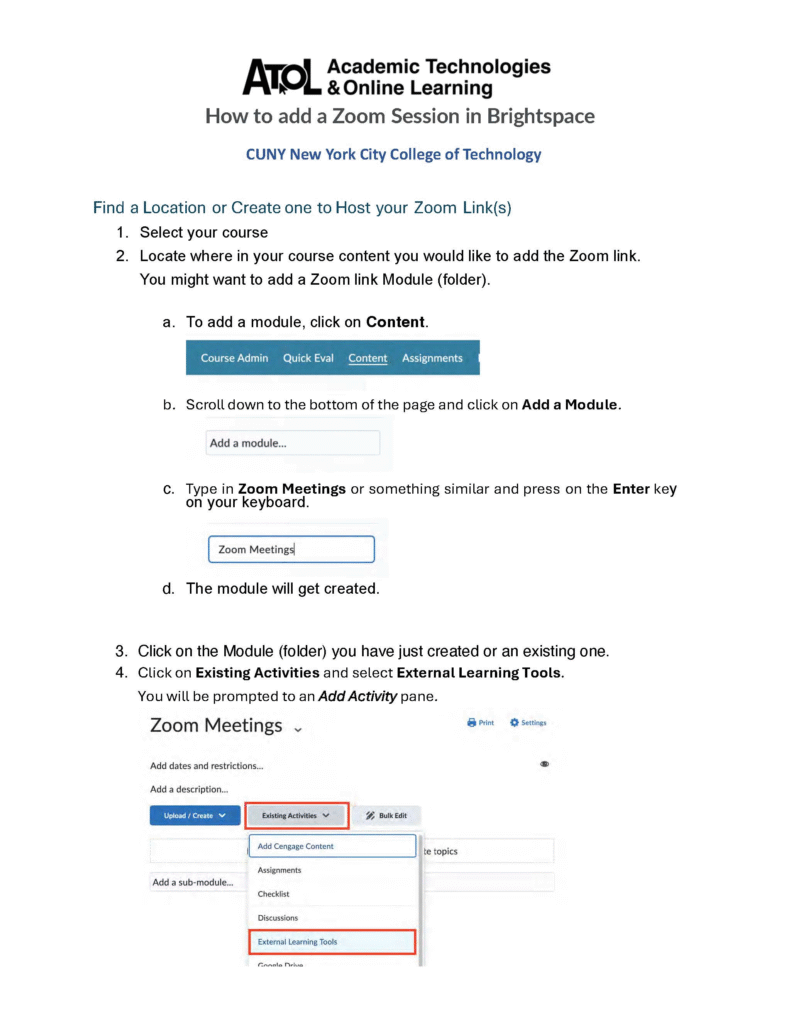
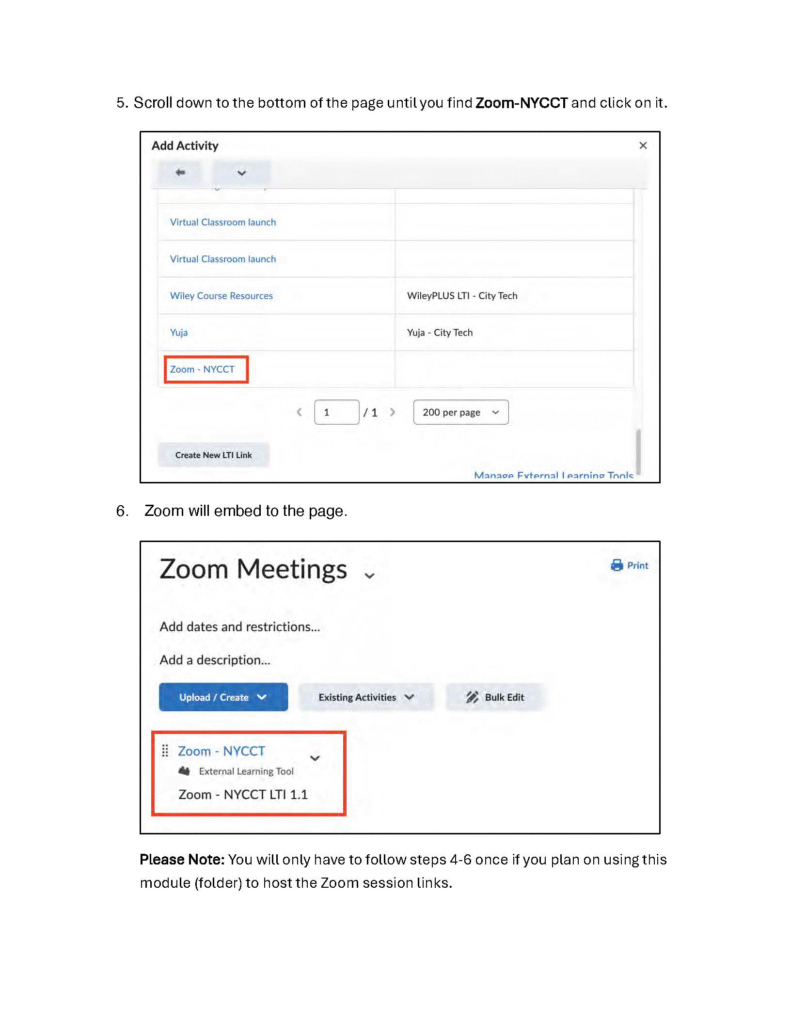
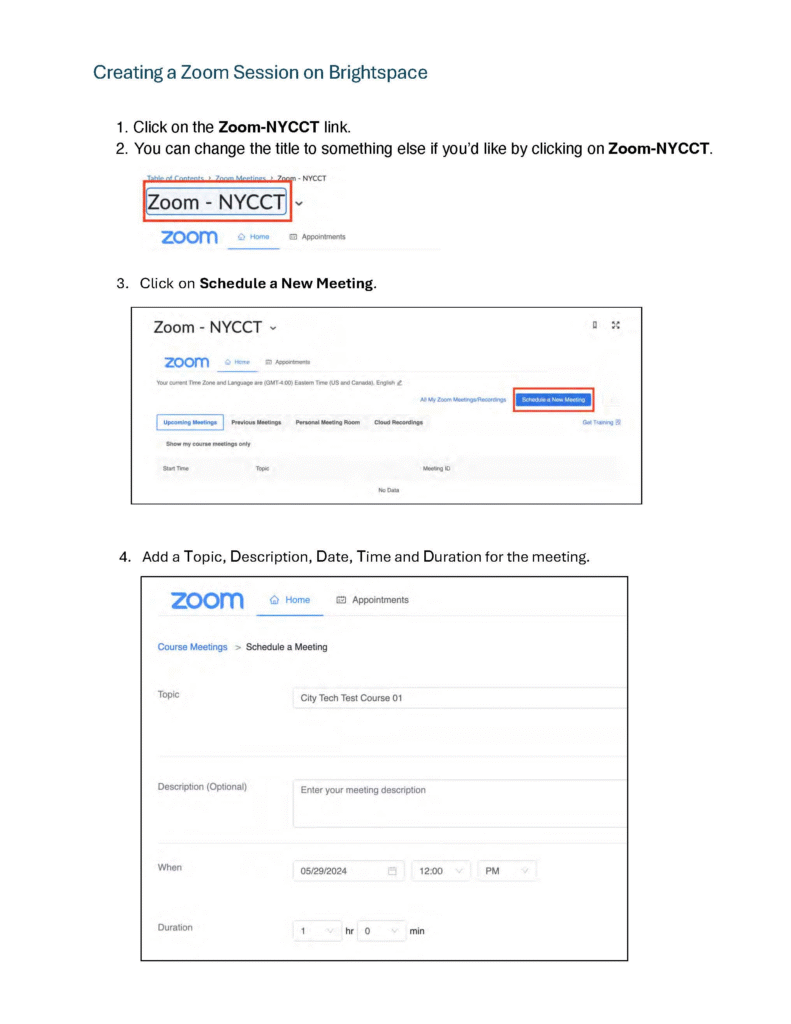
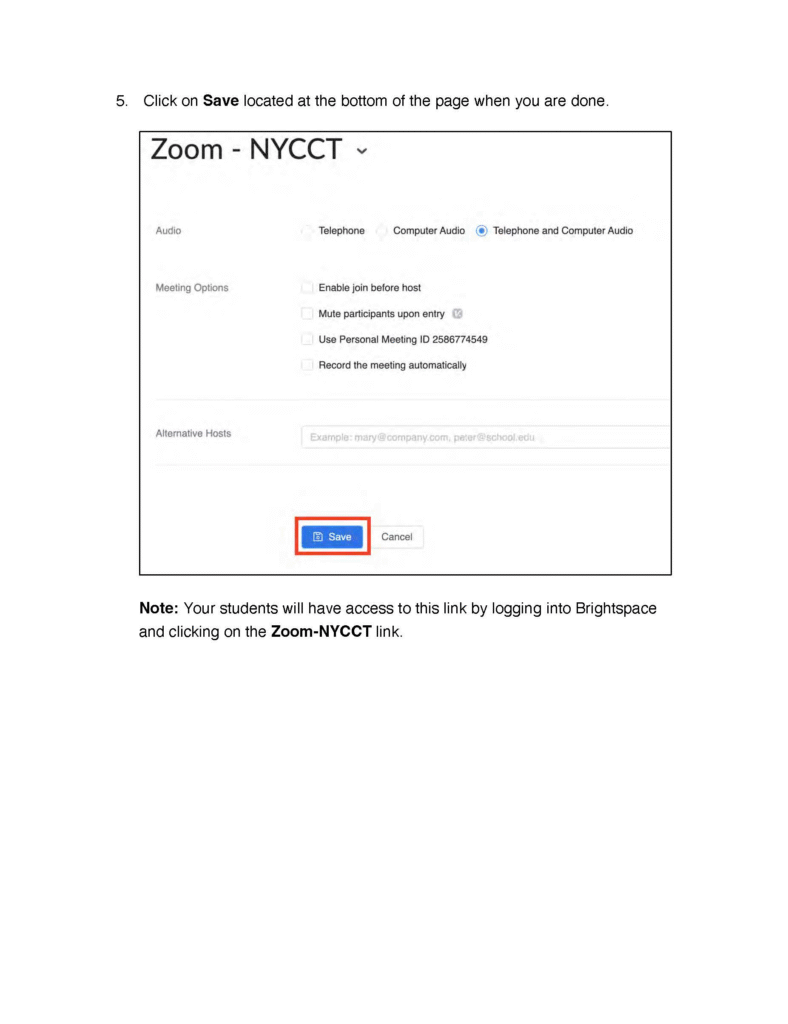
1. How to add a Zoom session to my course?
How to add a Zoom Session in my course.
2. How do I make my course active for all students?
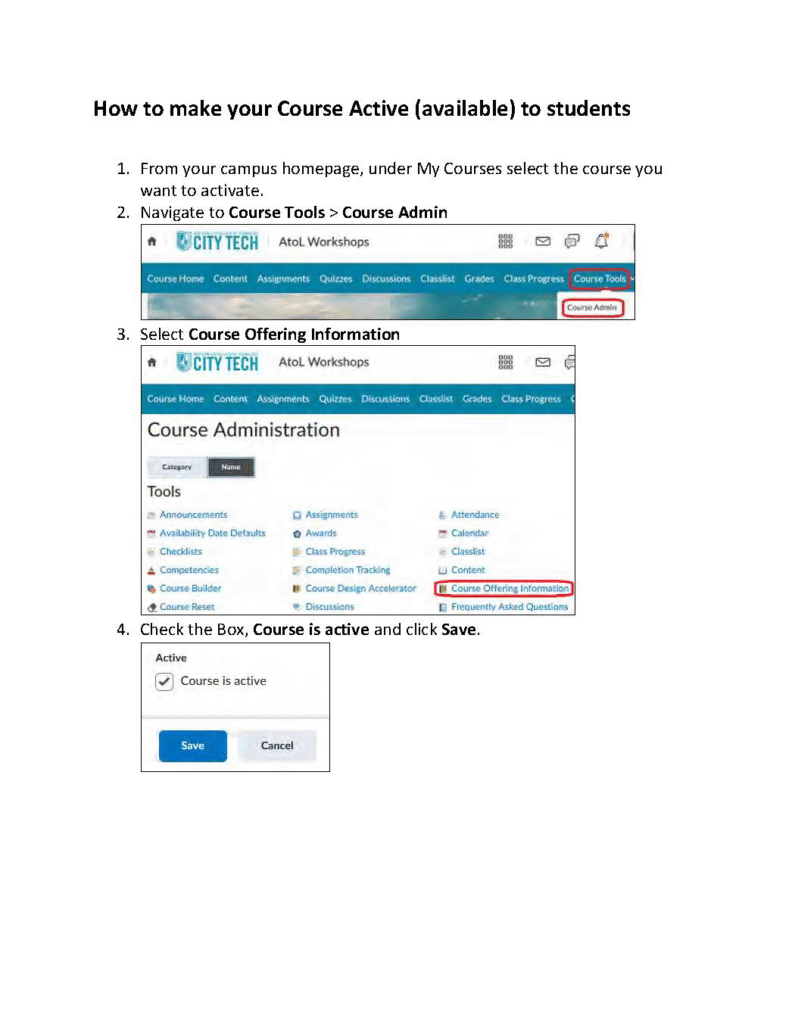
(Step-by-step instructions on making the courses active to students). From your organization homepage, use the course selector to search for and open the course you want to activate.
Navigate to Course Tools >> Course Admin >> Course Offering Information >> Check the Box, Course is active.
3. How do I send an email to the whole class?
Class List >> Select students or Select all >> Click on Email >> Compose your email >> Click on Send
4. How to create announcements?
(Step-by-step instructions on creating announcements)
From the course homepage, Go to Announcements >> New Announcement >>
Add Title, Content, Start Date, and End Date >> Click Publish.
5. How to set up my Grade Book
Part 1: How to set up the grade book Video.
Part 2: How to set up the grade breakdown calculations Video.
6. How do I see the course as a student?
How to view your course from the Learner’s view instructions.
7. Where can students find mobile resources and support for
using Brightspace on their devices?
Brightspace Pulse is the mobile app for Brightspace and can be downloaded on the Apple Store or Google Play. Students can find resources and support for the app on the Brightspace Community website, including how to Manage Your Course Workload With Brightspace Pulse.
Brightspace also has a video tutorial for learners on How To Navigate Pulse.
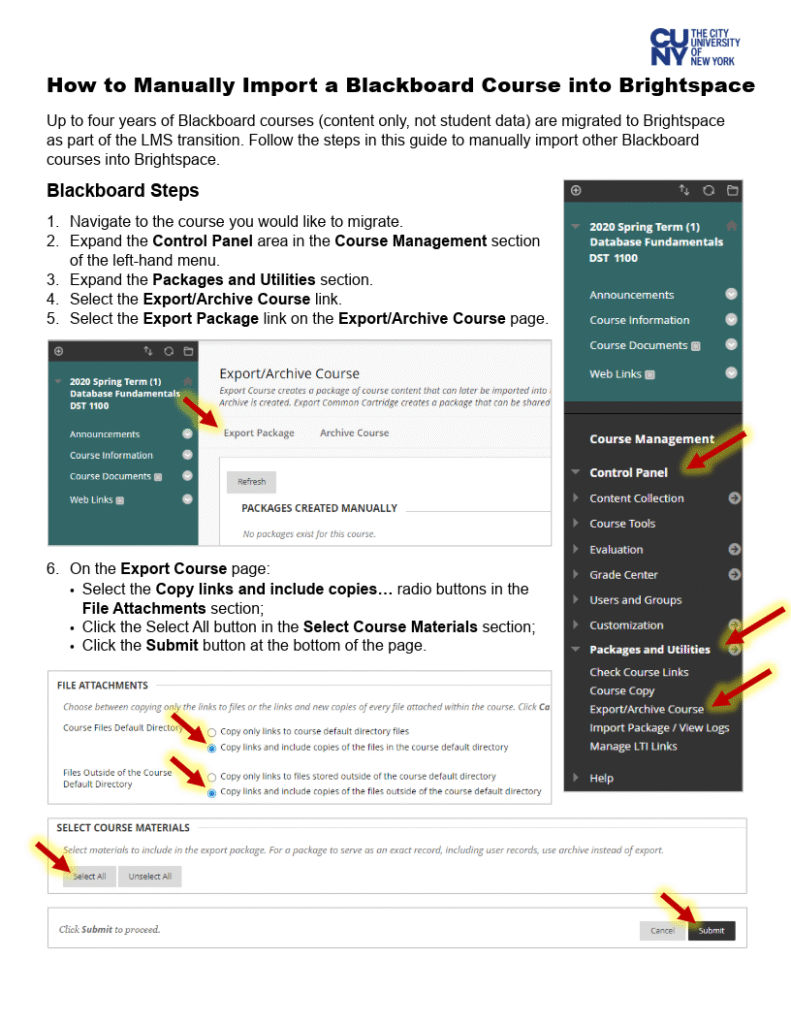
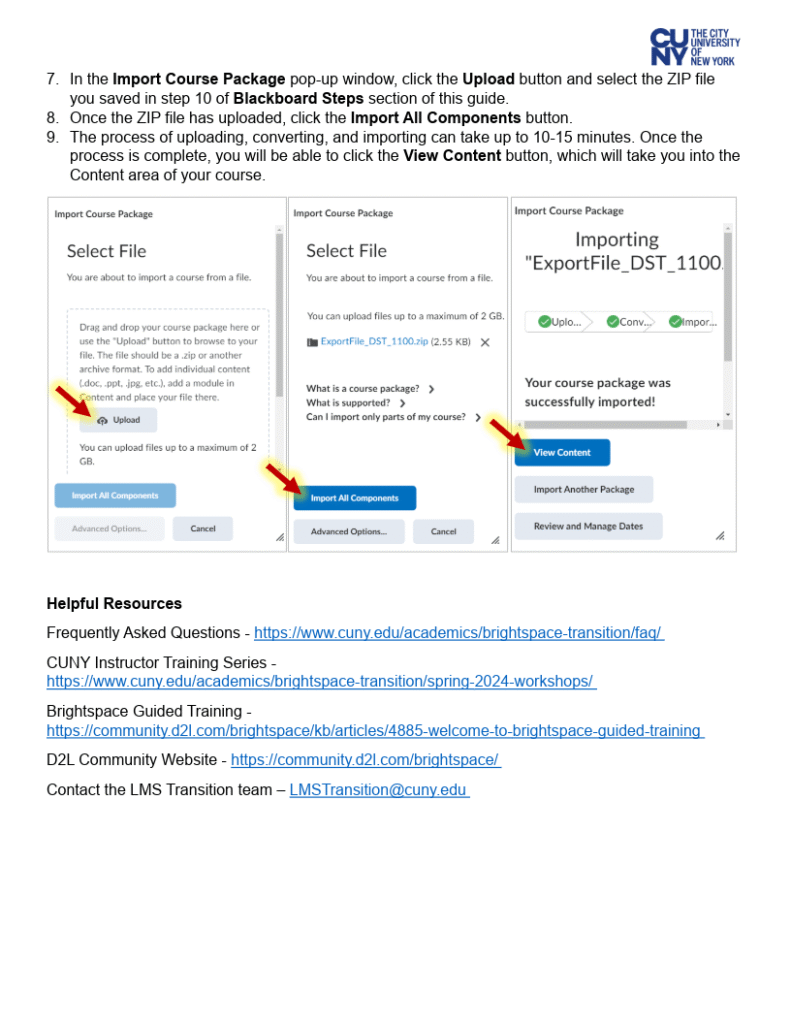
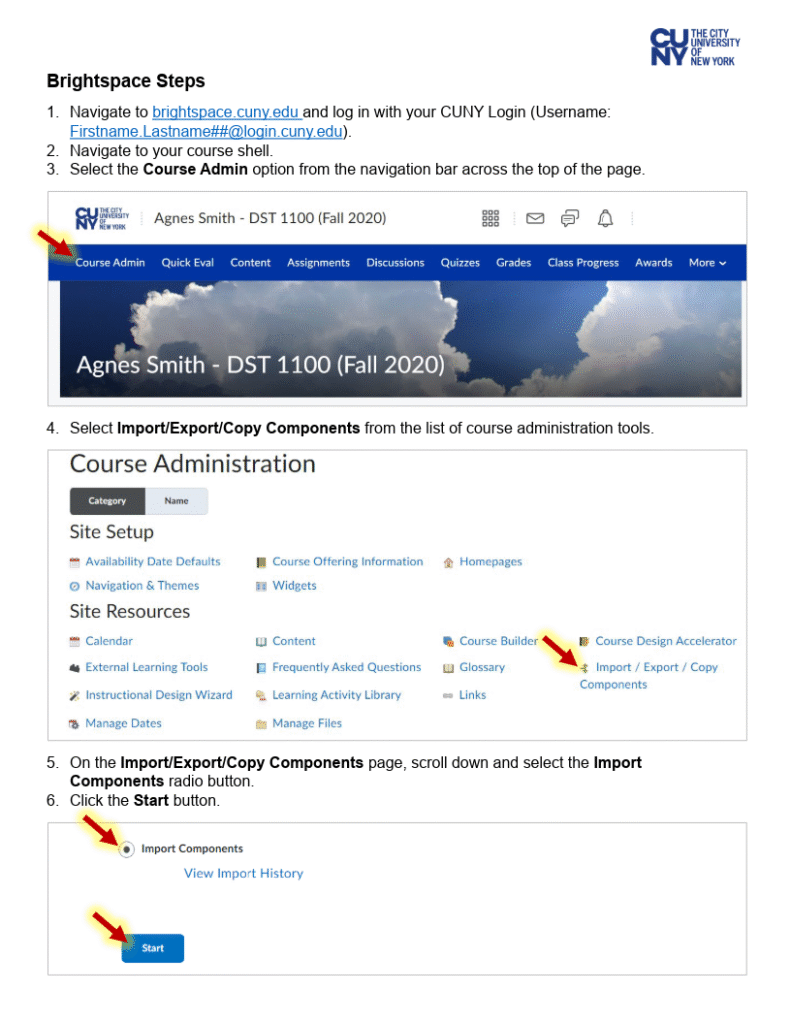
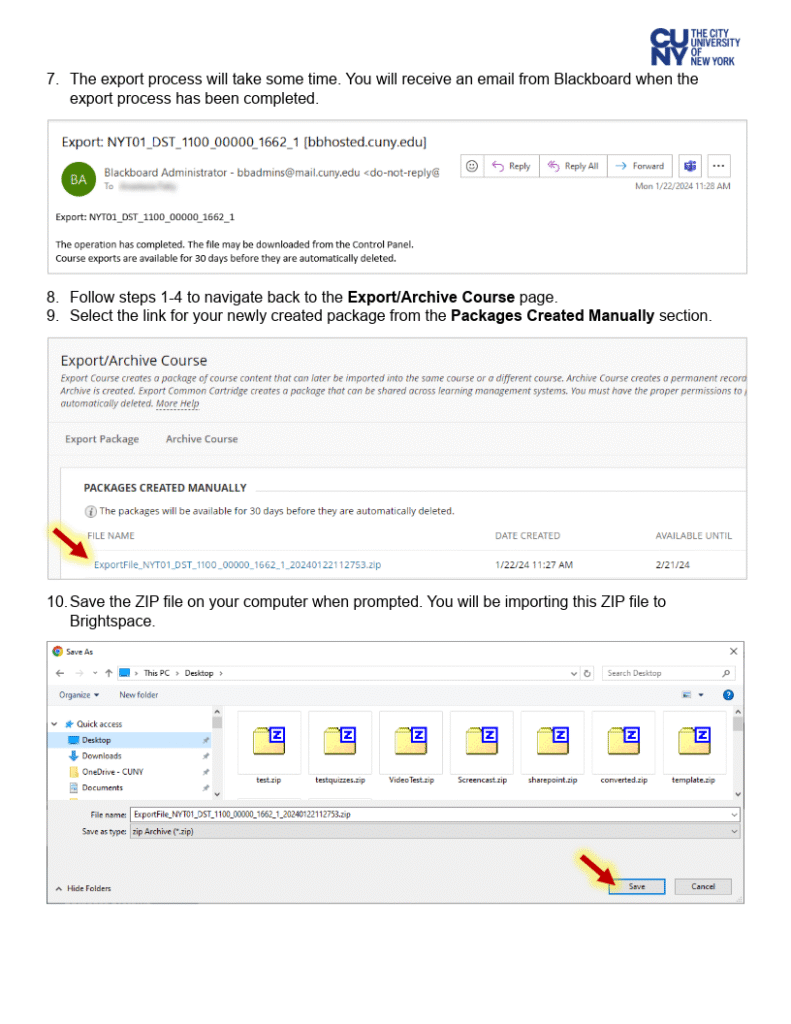
8. What if I have additional courses to migrate to Brightspace?
Courses outside the initial migration can be moved manually by faculty from Blackboard to Brightspace.
To learn more, review our guide to Blackboard to Brightspace Manual Course Migration.